A Little Friction Fixed My Bad YouTube Habit
I developed a bad YouTube habit in early 2025. Instead of doing something restful between focused work blocks, I’d often open YouTube on my iPhone instinctively. Once there, I’d waste time on shallow content—clicking on whatever seemed appealing and consuming mindlessly. Sometimes I wouldn’t even click anything and just scroll. Taking in the stream of attractions in the thumbnails and video titles was enough to keep me hooked for several minutes. The YouTube homepage was frequently disturbing, like this one.
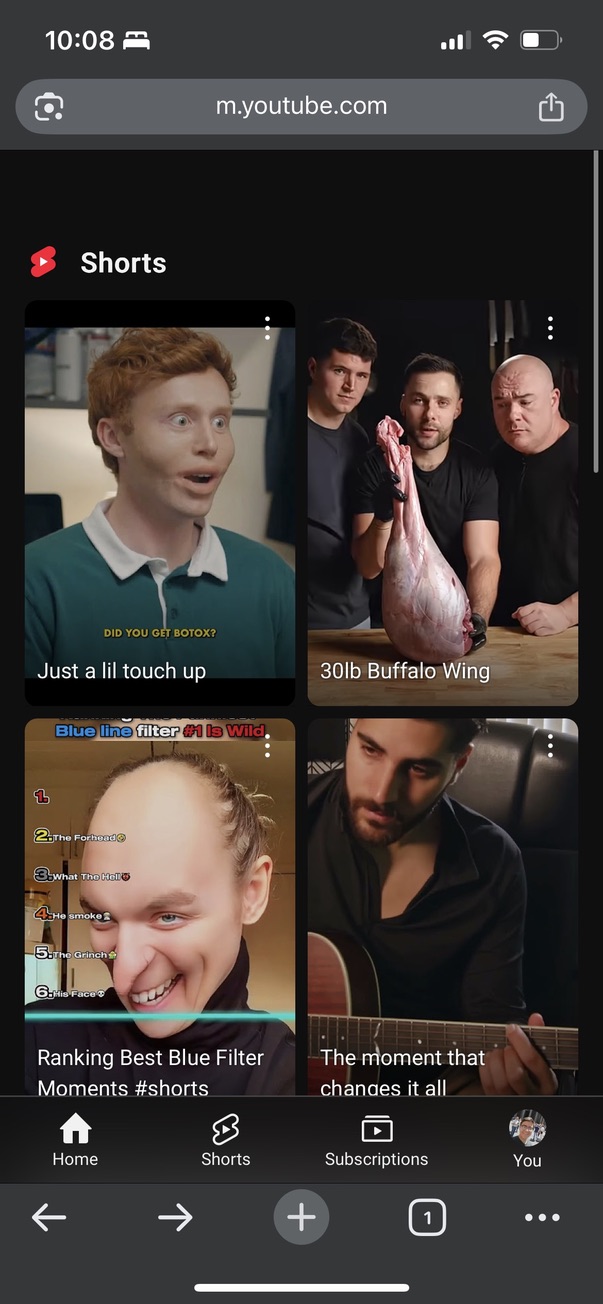
Thankfully, I didn’t have this issue on my laptop or desktop—maybe because I hadn’t allowed myself to build up a habit there. But the problem on my mobile devices was annoying enough that I decided to invest some time in fixing it.
Low-Hanging Fruit
I tried obvious solutions first, but they didn’t work.
I deleted the YouTube app, but eventually I’d just open YouTube in Chrome, my default browser. That turned out to be remarkably frictionless—only four gestures on my iPhone to reach the YouTube homepage1. Logging out didn’t help either because I’d still get addictive homepage content while logged out.
Screen Time didn’t work back then. As of iOS 26, you can restrict specific URLs on Chrome and Safari. But when I searched for solutions in early 2025, that functionality was only available for Safari. I didn’t want to block all of Chrome or switch to Safari, so I looked for third-party solutions.
Third-Party Solutions
I hit a few dead ends. Cold Turkey didn’t work on mobile. One Sec and Brick could only block specific websites on Safari at the time (though they may have since updated their support as of iOS 26). StayFree seemed buggy and had very low ratings in the Apple App Store.
The most promising solutions I found were Freedom and Cloudblock. I tried the latter first, and it worked well enough.
Cloudblock
To be clear, Cloudblock isn’t a perfect solution. In 2026, I’d recommend trying other options first.
For one, Cloudblock has a high barrier to entry. It’s more like a software library than an app. You need to know how to manage a cloud infrastructure environment, use GitHub, modify source files, and run Terraform commands.
It’s also not the cheapest solution. It currently costs me $16/mo in AWS costs. With optimization, I could likely reduce that to ~$7/mo (see Appendix). Even then, Freedom is cheaper at $3.33/mo as of this writing if you purchase a year’s subscription.
That said, the way Cloudblock blocked YouTube worked for me. I’ve used it for over six months, and only until the recent iOS 26 Screen Time updates did I feel the need to try something else. Here’s how YouTube blocking looks on my iPhone and iPad.
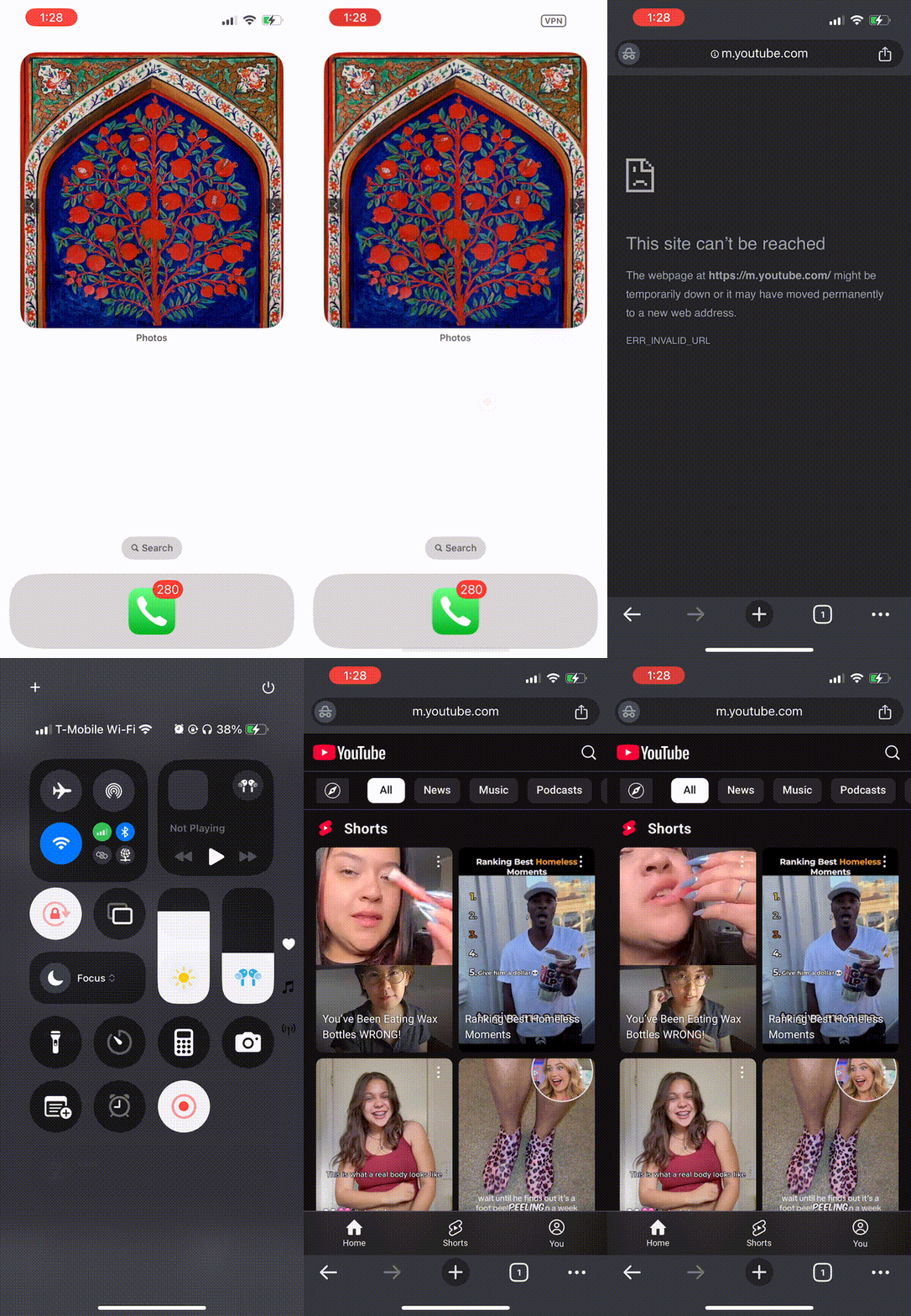
A Little Friction Was All I Needed
At first, I thought I’d need a heavy intervention—text message reminders, automated penalizing action, or gamification.
Surprisingly, all I needed was a bit of friction in an otherwise quite frictionless flow. It didn’t matter that I could turn off the VPN with a few gestures to get back on YouTube. I just needed a small gate in the access flow to snap me out of my automated habit and give me a moment to think, “Oh right, I shouldn’t do this right now.”
It’s important to note that I already wanted to spend less time on YouTube and was trying to break an automatic habit. Without that existing intention, this solution likely wouldn’t have worked.
My experience seems to align with the research. Even from a cursory glance at Roffarello & De Russis 2023 and Haliburton et al. 2024, there seems to be substantial work–mostly from Europe–showing that self-control tools contribute to so-called “digital wellbeing,” though to varying degrees. Haliburton et al. (2024) specifically show that “design friction” of the same kind that my Cloudblock solution added significantly reduces how often users open apps.
Recommendations for Solutions in 2026
Now that Screen Time can block specific URLs on Chrome, I’d try that first if you use Apple devices. I can’t speak to other devices. You can set youtube.com to “0sec, Every Day” to add friction to the YouTube access flow. A downside is that the friction only returns after at least 15 minutes. There’s no way to easily configure it to return sooner than that.
If that doesn’t work, I’d look for alternatives. I suspect Freedom is best for managing groups of devices (i.e., in a family or workplace). OneSec seems good for alternative ways to add friction if the basic Screen Time–style restriction isn’t effective. Brick is another friction style to try if the others don’t work.
I imagine Cloudblock would only be the best choice for a consumer looking for a DIY effort—that is, if you’re doing it for pleasure, to dig a layer deeper (e.g., to analyze your HTTP traffic, define special rules on it, or see what’s possible), or to learn the technologies.
Your Mileage Will Vary
Just because my solution worked for me doesn’t mean it will work for others, even if there’s some research-backed evidence that benefits generalize across people. Also, my bad habit was very specific: mindlessly opening YouTube on breaks, leading to several minutes of lost time. If I didn’t already intend to spend less time on YouTube, I imagine I’d need another kind of intervention. This also doesn’t help with binging YouTube—i.e., stopping once you’ve already decided to go on it.
References
- Brick. Brick App Website. Retrieved from https://getbrick.app/ on Feb 21, 2026.
- Cloudblock. Cloudblock GitHub Repository. Retrieved from https://github.com/chadgeary/cloudblock on Feb 21, 2026.
- Cold Turkey. Cold Turkey Website. Retrieved from https://getcoldturkey.com/ on Feb 21, 2026.
- Freedom. Freedom Privacy Questions and Answers. Retrieved from https://support.freedom.to/en/articles/1347493-freedom-privacy-questions-and-answers on Feb 21, 2026
- Haliburton et al. (2024). “A Longitudinal In-the-Wild Investigation of Design Frictions to Prevent Smartphone Overuse”. ACM Digital Library. Retrieved from https://dl.acm.org/doi/10.1145/3613904.3642370 on Feb 21, 2026.
- One Sec. One Sec App Tutorials. Retrieved from https://tutorials.one-sec.app/en/articles/3309954.
- Roffarello, M., & De Russis, L. (2023). “Achieving Digital Wellbeing Through Digital Self-control Tools: A Systematic Review and Meta-analysis.” ACM Digital Library. Retrieved from https://dl.acm.org/doi/10.1145/3571810 on Feb 21, 2026.
- StayFree. StayFree App Store Page. Retrieved from https://apps.apple.com/us/app/stayfree-block-apps-sites/id1631132311?see-all=reviews&platform=undefined on Feb 21, 2026.
Appendix
Notes on Cloudblock
Cloudblock is an open-source project that uses infrastructure-as-code tools to simplify deploying Pi-hole (a DNS sinkhole), WireGuard (VPN), and cloudflared (DNS-over-HTTPS) across different cloud environments. With WireGuard on your devices, you can easily connect to your self-hosted VPN. Once connected, DNS resolves through Pi-hole, letting you define rules to block any hostnames you want.
Configuration and setup are mostly painless if you know GitHub, the command line, and a cloud infrastructure environment. I can only speak to the AWS module, which I used.
The README is high quality and walks you through straightforward steps. Configuration mainly involves populating variables in a file called aws.tfvars—fields like pihole_password and mgmt_cidr. These are organized into “COMMON,” “UNCOMMON,” and “VERY UNCOMMON” sections to guide users of different technical levels.
The setup’s biggest friction point was the Terraform apply step. It took about six minutes to provision the aws_ami_copy resource, which had me thinking I’d made a mistake in the configuration. There are also a few outdated VPC resource arguments.
The network and security config is solid. The project creates a dedicated VPC and defines Security Groups to ensure SSH Management and the Pi-hole Admin Interface are only accessible from a mgmt_cidr, which you can set to your home IP address. The VPN port is world-open by default, but that’s not a big issue since WireGuard is peer-based. At worst, someone could DoS attack it and prevent me from connecting—peers authenticate with pre-configured keys. Plus, keeping the VPN port world-open gives me YouTube blocking functionality when I’m away from home.
I wish the project did more to help users create a more secure AWS principal for provisioning. Currently, it asks users to create a programmatic IAM user with admin permissions. It would be more secure to limit this user’s permissions to exactly what it needs—which appears to be less than admin. It would also be helpful to let users work with a federated user or follow a better IAM security practice than long-lived IAM user credentials.
My solution currently costs $16/mo. With some optimization, it could likely drop to ~$7/mo.
- Instance. I use the default t4g.micro instance type, but a t4g.nano would halve the compute price to about $3.50/mo and may work fine.
- VPN IP Address. Instead of using an Elastic IP address for $4/mo, I could use the ephemeral public IP of the EC2 instance. This works fine for my home use case and would drop the cost to $0.
- KMS Keys. The project could be updated to use AWS-managed KMS keys or reuse a single customer-managed KMS key for each service (SSM, S3, EC2/EBS), which would decrease cost from $3/mo to about $0.50/mo.
Open iPhone → Swipe down on home screen → Tap on Chrome in the Siri Suggestions → Either: Click YouTube on recommended sites bar OR enter “y” in URL and hit enter. ↩︎